Is Geek Uninstaller free?
Yes—for personal use the main build is free. Commercial users should review the license terms on the official site. Advanced features ship in Uninstall Tool (paid).
Does it replace Windows Settings?
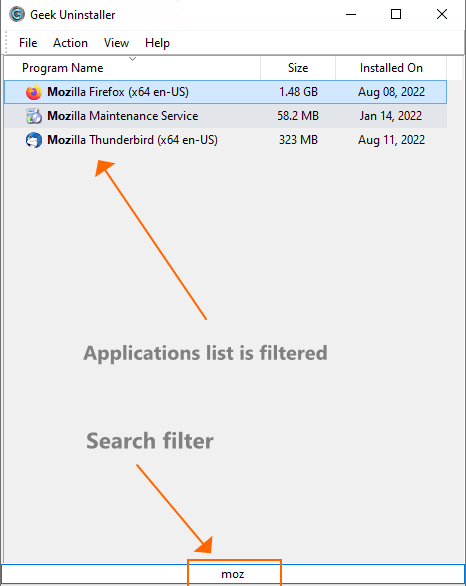
It complements Settings and Control Panel with faster search, portable execution, and deeper leftover handling. Many admins keep both: Settings for simple cases, Geek for messy ones.
Will it speed up my PC?
Removing unused software and their autostart hooks can reclaim disk and reduce background work, but results vary. Pair uninstalls with disk cleanup and SSD health checks for best outcomes.
Where do I report bugs?
The author invites contact via the e-mail listed on the official about page (English or Dutch).
Is Geek Uninstaller safe?
Yes. Download only from a trusted source you can verify. The program has no adware or bundled software. Verify file hashes when the author publishes them; some antivirus may falsely flag uninstallers that modify registry keys.
Does it work on Windows 11?
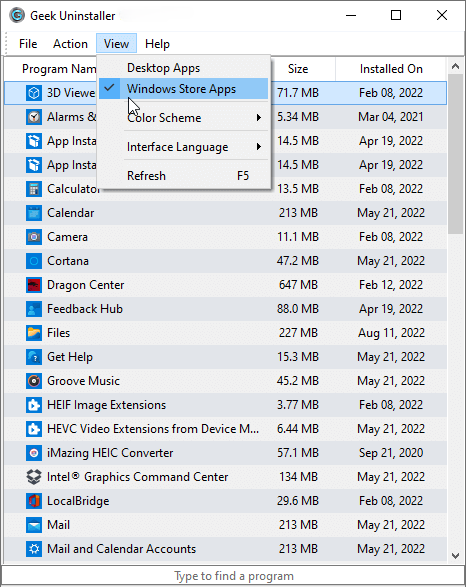
Yes. Geek Uninstaller supports Windows 7, 8, 8.1, 10, and 11. Windows 11 Store app handling and ARM support depend on the build—check the official changelog for specifics.
Can I run it from a USB stick?
Yes. Extract the ZIP to a USB drive and run the executable from there. No installation required. Ideal for techs who service multiple machines.
What is force removal?
Force removal deletes the program’s registry entries and optionally its files without running the vendor’s uninstaller. Use when the normal uninstall fails or the entry is orphaned.
Does it remove browser extensions?
No. Geek Uninstaller removes installed desktop and Store apps, not browser add-ons. Remove extensions from within Chrome, Edge, Firefox, etc.
How does leftover scan work?
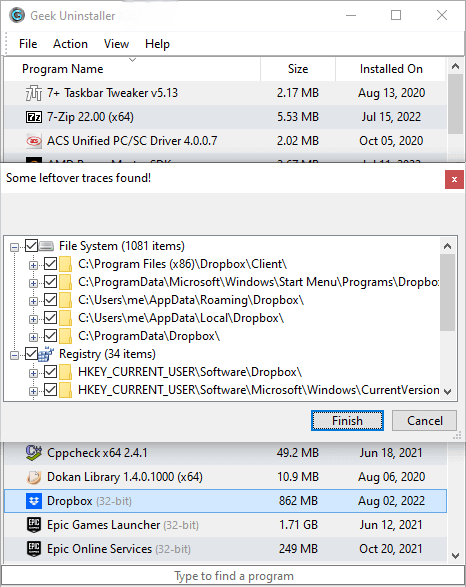
After a normal uninstall, Geek scans common locations (registry, Program Files, AppData) for files and keys left behind. You choose which leftovers to delete—some may be shared by other programs.
Is there a portable vs installed version?
Geek is always portable. There is no separate installer—just extract and run. No system integration, no startup entries.
What’s the difference from Revo Uninstaller?
Geek is simpler and fully free for personal use; Revo has free and paid tiers with install monitoring. Geek is portable-only; Revo can be installed. Both do clean removal and leftover scanning.
Can it uninstall Windows updates?
No. Windows Updates are managed via Settings → Windows Update → Update history or Control Panel. Geek handles third-party software only.
Does it clean the registry?
Yes, as part of uninstall and leftover scan. It removes keys tied to the uninstalled software. It does not do general registry “cleaning” or optimization—that’s a different category of tool.
Who develops Geek Uninstaller?
Thomas Koen develops the free version. CrystalIDEA develops Uninstall Tool (the commercial variant) based on the same codebase lineage.
Can I use it on a work computer?
Check your organization’s software policy. Geek is free for personal use; commercial use may require a license. Domain policies may also restrict running portable executables.
Why ZIP and 7Z downloads?
Both contain the same files. 7Z is smaller (better for bandwidth); ZIP is more universally supported without extra tools. Use whichever your system can extract.